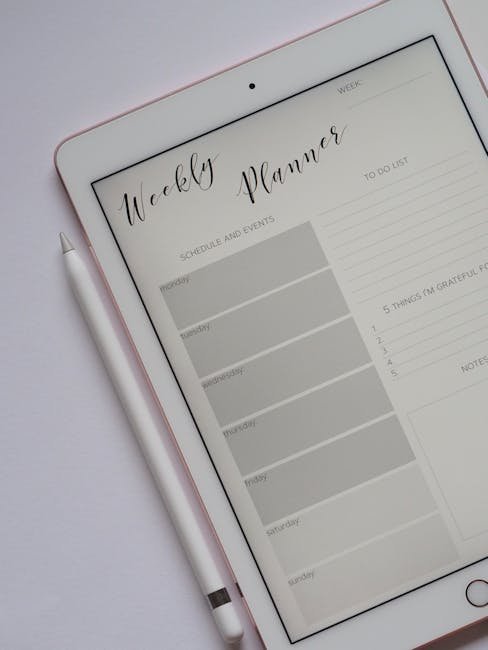
When I first started juggling multiple projects, I found myself buried under a mountain of sticky notes and calendar apps that couldn’t keep up with my chaotic schedule. That’s when I realized the true power of a well-designed scheduling tool. After testing countless options, I’ve narrowed down the best scheduling tools for creators. Whether you’re a writer, designer, or content creator, there’s something here for you. Let’s dive into the nitty-gritty of each tool, with no sugar-coating.
Google Calendar
If you’re like me and tend to stick with what’s familiar, Google Calendar is a tool that needs no introduction. I integrated it with my Gmail account and it seamlessly pulled in all my events. The UI is straightforward, but don’t let its simplicity fool you—it’s a powerhouse for scheduling, especially when you’re managing multiple projects.
One of the standout features is the ability to create multiple calendars within the same account. I used one calendar for my work schedule, another for personal appointments, and a third for content deadlines. The color-coded events make it easy to differentiate between categories at a glance.
However, Google Calendar is not without its downsides. The lack of advanced scheduling features like detailed analytics or team collaboration can be a drawback for creators working in larger teams. It’s also not the best tool for setting time-blocked work sessions if you’re looking to optimize productivity.
- Pricing: Free
- Best for: Individuals and small teams who are already deep in the Google ecosystem.
Rating: 8/10 – Reliable and ubiquitous, but not packed with advanced features.
Trello
When I tested Trello for an entire month, I was impressed by its visual layout and flexibility. Trello uses boards, lists, and cards to organize tasks, which is perfect for visual thinkers. I set up boards for each project and used cards to track progress on individual tasks. It’s like having a digital kanban board, which is a game-changer for managing workflows.
The ability to drag and drop cards between lists was a game-changer for me. I could see my tasks moving from ‘To Do’ to ‘In Progress’ and finally ‘Done’. This simple interaction gave me a sense of accomplishment that was oddly satisfying.
However, Trello isn’t perfect. It lacks robust calendar features, which means you might still need another tool for scheduling specific times and dates for your tasks. The free version is also limited in terms of integrations and advanced features.
- Pricing: Free with limited features, paid plans start at $5/user/month
- Best for: Visual planners and those who thrive on list-based organization.
Rating: 7/10 – Visually engaging, but lacks depth for detailed scheduling.
Asana
I’ve used Asana in collaboration with teams, and it’s a robust tool for scheduling and task management. Asana offers a comprehensive suite of features that cater to project management needs. I found the Timeline (Gantt chart) view particularly useful for visualizing project timelines.
Asana’s strength lies in its ability to track task dependencies and offer a clear view of project progress. I appreciated the ability to assign tasks, set due dates, and add subtasks, which kept everyone on the same page. The integrations with other tools like Slack and Dropbox also add to its utility.
On the downside, Asana can be overwhelming for new users due to its myriad of features. I found the learning curve to be steeper than with other tools. Additionally, the free version offers limited functionality, which may not suffice for larger teams.
- Pricing: Free for basic use, premium plans start at $10.99/user/month
- Best for: Teams looking for a comprehensive task management solution.
Rating: 9/10 – Powerful for teams, but can be complex for individual use.
Notion
Notion is like a Swiss army knife for creators. I ran Notion alongside my regular tools for a month, and it quickly became a central hub for organizing my life. It’s not just a scheduling tool; it’s an all-in-one workspace where you can plan, write, and collaborate.
The flexibility of Notion is incredible. I created pages for each project, embedded calendars, and used databases to track tasks. The customization options allowed me to tailor the workspace to fit my needs perfectly. It’s especially useful for creators who want to integrate notes, tasks, and schedules into a single platform.
The downside? Notion can be overwhelming at first due to its vast array of features. It requires some investment of time to set up effectively, and its performance can lag with heavy content.
- Pricing: Free for personal use, team plans start at $8/user/month
- Best for: Creators looking for a highly customizable and integrated workspace.
Rating: 8.5/10 – Extremely flexible but can be daunting to set up.
Calendly
When it comes to scheduling meetings without the back-and-forth emails, Calendly is a lifesaver. I used it to streamline my meeting schedules, and it integrates beautifully with Google Calendar and Outlook.
Calendly allows you to create custom meeting types and share your availability with others through a simple link. When I tested this tool, it significantly reduced the hassle of aligning schedules with clients and collaborators.
However, it’s primarily focused on meeting scheduling, so it might not be the best choice if you’re looking for a comprehensive task management tool. The free plan also limits the number of meeting types you can create.
- Pricing: Free for basic features, premium plans start at $8/user/month
- Best for: Professionals who need an efficient way to schedule meetings.
Rating: 8/10 – Excellent for meetings, but not a full-fledged task manager.
Comparison Table
| Tool | Best For | Free Version | Premium Cost | Rating |
|---|---|---|---|---|
| Google Calendar | Individuals & Small Teams | Yes | N/A | 8/10 |
| Trello | Visual Planners | Yes | $5/user/month | 7/10 |
| Asana | Teams | Yes | $10.99/user/month | 9/10 |
| Notion | Customizable Workspaces | Yes | $8/user/month | 8.5/10 |
| Calendly | Meeting Scheduling | Yes | $8/user/month | 8/10 |
My Verdict
After testing each of these tools extensively, my top pick for creators remains Asana for team-based projects and Notion for individual creators seeking a customizable workspace. Asana’s project management features are unmatched for collaborative efforts, while Notion’s flexibility makes it a powerhouse for those who want everything in one place. If your primary focus is meetings, Calendly is your best bet. Trello is great for those who love visual task boards, and Google Calendar is a solid choice for its simplicity and integration within the Google ecosystem.
FAQ
Is Google Calendar sufficient for professional scheduling?
Google Calendar is sufficient for basic scheduling needs, especially if you are already using other Google services. However, it lacks advanced project management features, so for more complex scheduling and task management, you might want to consider other tools.
How does Trello compare with Asana?
Trello is more visual and is excellent for simple project tracking with its card-based system. Asana, on the other hand, offers more robust features for detailed project management, including task dependencies and project timelines, making it better suited for larger teams and complex projects.
Can Notion replace both a task manager and a note-taking app?
Yes, Notion can effectively replace both a task manager and a note-taking app. Its customization allows you to create databases, calendars, and notes all in one place. However, setting it up can be time-consuming, and its performance may lag with extensive content.
Is the free version of Calendly enough for most users?
The free version of Calendly offers basic features that are sufficient for many users, especially individuals. However, if you need to create multiple meeting types or require advanced integrations, the premium version would be more beneficial.
Why choose Asana over other tools for team projects?
Asana stands out for team projects due to its comprehensive project management capabilities, including task assignments, dependencies, and clear project timelines. Its integrations with other tools make it a versatile choice for collaborative work.
— Alex
Test everything. Trust nothing.
📘 Want more? Grab my free ebook: 50 Best Free AI Tools in 2026

Hey, I’m Alex — a creator tool obsessive who tests every platform so you don’t have to. Honest reviews, zero BS.
Leave a Reply