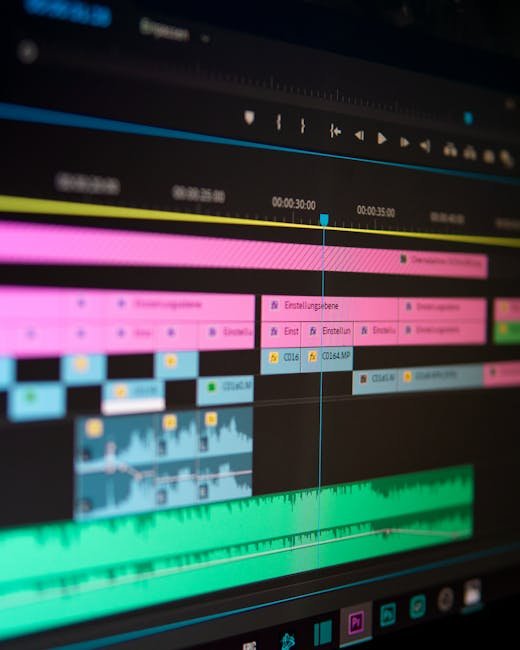
I’ve spent countless hours testing various video editing tools, and let me tell you, not all are created equal. From intuitive interfaces to advanced features, each platform offers something unique, yet finding that perfect balance can be a challenge. Having tinkered with close to a dozen different software packages, I’ve come across both gems and duds. Let’s dive into the specifics of the best video editing tools out there to help you find the right one for your creative needs.
Pictory
Pictory is a cloud-based video editing platform specifically designed for creators looking to produce polished video content quickly. It simplifies complex editing processes so anyone can transform text into video using AI-driven technology.
Standout Features
Text-to-video conversion transforms any script or article into a video with AI picking suitable footage automatically. Automated captioning and transcription are built in without needing additional software, while voiceover options give access to AI-generated voices or the ability to upload your own. Social media integration makes resizing videos for different platforms effortless, and a built-in media library provides stock footage, music, and images to complement your projects.
The Good
Pictory’s intuitive UI reduces the learning curve significantly for beginners and professionals alike. It converts long-form content into short engaging clips quickly, AI-driven features automate many editing tasks to save time, and flexible subscription plans suit different levels of creators.
The Bad
Advanced editors may find customisation options somewhat limited. Being cloud-based also means an internet connection is required at all times.
Pricing
Standard plan $19/month for basic features and limited export quality. Premium plan $29/month includes advanced features and HD export.
Who Should Use It
Beginner to intermediate video creators looking for an efficient tool to produce content quickly without a steep learning curve will find Pictory ideal. Also suitable for content editors needing to repurpose existing articles or scripts into video format. Try Pictory →
Rating: 8/10
Adobe Premiere Pro
Adobe Premiere Pro is a professional-grade video editing software widely used by filmmakers, television broadcasters, and YouTubers. It offers a comprehensive set of editing tools that can handle everything from basic edits to intricate video compositions.
Standout Features
A customisable interface lets you arrange workspaces to suit your workflow. Multicam editing recognises and edits multiple camera angles within a single sequence, Lumetri Color tools deliver professional-grade colour grading, seamless integration with After Effects, Audition, and Photoshop extends capabilities, and Ultra HD export supports the highest quality formats.
The Good
The level of detail achievable makes it appropriate for high-end productions. It works with virtually any video format without converting files, and the comprehensive toolset suits everything from vlogs to cinematic films.
The Bad
The extensive features can be overwhelming for beginners, and the monthly subscription cost can get pricey over time.
Pricing
Single app $20.99/month. Creative Cloud All Apps $52.99/month for access to all Adobe creative tools.
Who Should Use It
Ideal for advanced users, professional video editors, and those working on complex video projects requiring robust editing capabilities.
Rating: 9/10
Final Cut Pro
Final Cut Pro is Apple’s professional video editing app designed for Mac users. It leverages the powerful Mac environment and hardware to deliver a high-performing, feature-rich editing experience.
Standout Features
The magnetic timeline organises clips without collisions or sync problems. Advanced colour grading uses colour wheels and curves for precise correction, 360-degree VR editing supports headset integration, multicam editing handles up to 64 camera angles simultaneously, and built-in motion graphics tools create and customise graphics with ease.
The Good
Despite sophisticated features, the user experience is more intuitive than many competitors. It’s optimised for MacOS architecture for enhanced performance, and a one-time purchase avoids ongoing monthly subscriptions.
The Bad
It’s Mac-only, making it inaccessible for Windows users. Compatibility with some third-party plugins can also be an issue.
Pricing
One-time purchase of $299.99 with no ongoing fees.
Who Should Use It
Mac users serious about video editing who can make full use of the rich features offered, especially in creative sectors like film and media.
Rating: 9/10
Filmora
Filmora is a video editing software developed by Wondershare, designed to make video editing accessible without sacrificing features. It’s targeted at creators who want more than basic tools but aren’t ready to dive into professional-grade complexity.
Standout Features
A drag-and-drop interface makes adding video clips, images, and audio files to the timeline effortless. An effects store provides a wide variety of transitions and overlays, an audio mixer allows independent adjustments to audio tracks, 4K editing support handles high-resolution videos without performance issues, and split-screen functionality creates multi-screen presentations easily.
The Good
The straightforward intuitive interface is perfect for beginners. Competitive pricing delivers solid value for the features provided, and regular updates frequently add new effects, transitions, and tools.
The Bad
Advanced editors may find it lacking certain professional-grade tools. Export format options are also somewhat limited for professional needs.
Pricing
Annual subscription $49.99/year. Perpetual licence $69.99 as a one-time purchase with lifetime updates.
Who Should Use It
Ideal for budget-conscious users wanting a balance between simplicity and capability — perfect for hobbyists and social media influencers.
Rating: 7/10
DaVinci Resolve
Developed by Blackmagic Design, DaVinci Resolve is renowned for its superior colour grading capabilities. It integrates editing, colour correction, visual effects, motion graphics, and audio post-production all in one software.
Standout Features
Fusion visual effects includes 3D compositing and motion graphics. Fairlight Audio provides a fully integrated suite of audio post-production tools, the colour page offers colour wheels and HDR tools for professional grading, collaboration tools allow multiple editors to work on the same project simultaneously, and a dual timeline keeps large projects organised and navigable.
The Good
Extensive editing capabilities are available at no cost in the free version. It’s widely used in the film industry for colour grading and post-production, and the comprehensive feature set is not typically found in free software.
The Bad
The professional-grade interface can be intimidating for beginners. It also demands more from your hardware to run smoothly.
Pricing
DaVinci Resolve is free for basic access. DaVinci Resolve Studio $295 for advanced features and updates.
Who Should Use It
Film and TV professionals and intermediate to advanced users requiring powerful colour grading and visual effects capabilities.
Rating: 8/10
HitFilm Express
HitFilm Express is a free video editing and visual effects software that combines video editing and visual effects in a package designed for creative editors.
Standout Features
VFX compositing offers an extensive selection of visual effects and presets. Key-frame animation support makes complex animations more manageable, 3D compositing allows insertion of 3D models into scenes, comprehensive training resources provide a wide array of tutorials, and automatic audio sync aligns audio with video clips efficiently.
The Good
A robust free version is available with additional effects purchasable as needed. The wide array of effects and editing tools rival paid software, and an active community provides learning and support opportunities.
The Bad
Advanced features and effects require additional in-app purchases. It can also slow down on lower-end PCs due to intensive processing requirements.
Pricing
HitFilm Express is a free download. Upgrade packs start at $9.99 per pack depending on added features.
Who Should Use It
A great choice for students, hobbyists, and newcomers to video editing wanting to create impressive effects without initial financial investment.
Rating: 7/10
iMovie
iMovie is Apple’s entry-level editing platform, pre-installed on Macs. It’s more basic than professional software but offers sufficient features for basic to moderate video editing tasks.
Standout Features
Trailer templates create polished trailers with pre-designed placeholders for your clips. A simplified timeline makes video and audio management easy, backgrounds and video effects add filters, titles, and themes, and mobile support for iPad and iPhone lets you create or edit videos on the go.
The Good
It’s completely free for Mac users. The simple straightforward interface makes it approachable for beginners, and seamless Apple ecosystem integration makes transitioning projects to other Apple software effortless.
The Bad
Limited advanced features won’t satisfy professional editors or complex editing needs. It’s also Mac-only, inaccessible to Windows and Android users.
Pricing
Free — included with MacOS devices at no additional cost.
Who Should Use It
Casual Mac users and beginners looking for basic video editing capabilities without needing more professional-level software.
Rating: 6/10
Comparison Table
Common Mistakes When Choosing Video Editing Tools
Overlooking system requirements is a frequent mistake — choosing a tool your hardware can’t handle leads to poor performance and efficiency loss. Ignoring the learning curve of professional software like Adobe Premiere Pro without considering the time required to master it can be overwhelming for beginners.
Underestimating budget limitations means opting for high-end software without analysing long-term subscription costs can strain finances unnecessarily. Not considering future needs leads to choosing tools that don’t scale as your skills develop. And choosing based on popularity alone without checking whether capabilities truly meet your specific project needs is a trap many fall into.
How To Choose The Right Video Editing Tool
Choosing the right video editing tool hinges on understanding your specific needs and workflow. Are you a beginner needing a straightforward interface, or a professional requiring nuanced features like colour grading and visual effects? Define the nature of your editing projects and assess how complex your work will become as you grow.
Budget considerations are equally crucial. While free options like DaVinci Resolve and iMovie offer great starting points, evaluating whether premium features align with your editing style can save money and frustration in the long run.
My Verdict
After trying out all these tools, I’d crown Adobe Premiere Pro as my top pick for its comprehensive features and adaptability to diverse project needs. It’s ideal for those ready to elevate their editing skills to a professional level. For Mac users, Final Cut Pro‘s integration with Apple’s ecosystem makes it a formidable contender. For those just starting out, Filmora offers a balance of simplicity and capability at a fair price.
Frequently Asked Questions
Is Pictory suitable for professional-grade projects?
Pictory is great for quick content creation and repurposing written material into video, but it may not offer the depth required for intricate professional-grade projects.
What makes Adobe Premiere Pro a standout among editing tools?
Seamless integration with other Adobe tools, a comprehensive feature set, and high flexibility make it the standout choice for professional editors working on complex projects.
Can Final Cut Pro be used for nonlinear video editing?
Yes, Final Cut Pro excels in nonlinear video editing with capabilities that rival and often exceed other top-tier programmes.
Does DaVinci Resolve offer capabilities for beginner editors?
DaVinci Resolve’s free version provides robust features suitable for beginners willing to invest time in learning, with professional tools ready when they advance.
What makes Filmora a user-friendly option?
Filmora’s drag-and-drop interface, abundant effects, and simple navigation make it perfect for casual editors and beginners not requiring professional-grade features.
How does HitFilm Express support visual effects creation?
HitFilm Express offers comprehensive VFX compositing and 3D visual animation tools at no initial cost, ideal for budding creators wanting to experiment with effects.
Is iMovie limited to Apple users only?
Yes, iMovie is an Apple-exclusive tool available on MacOS and iOS devices but not accessible to Windows or Android users.
What are common beginner mistakes with video editing tools?
Beginners often underestimate the learning curve, ignore system requirements, and overlook long-term costs associated with advanced subscription models.
Test everything. Trust nothing. — Alex
“`

Hey, I’m Alex — a creator tool obsessive who tests every platform so you don’t have to. Honest reviews, zero BS.
Leave a Reply